
To look at an individual student's exam progress and results, just follow the steps below.
- Log in to your account and navigate to your Educator Tools.
- Click the Students tab in the sidebar menu.
- Click on the name of the student you want to view. You'll see Exam Progress and Recent Activity.
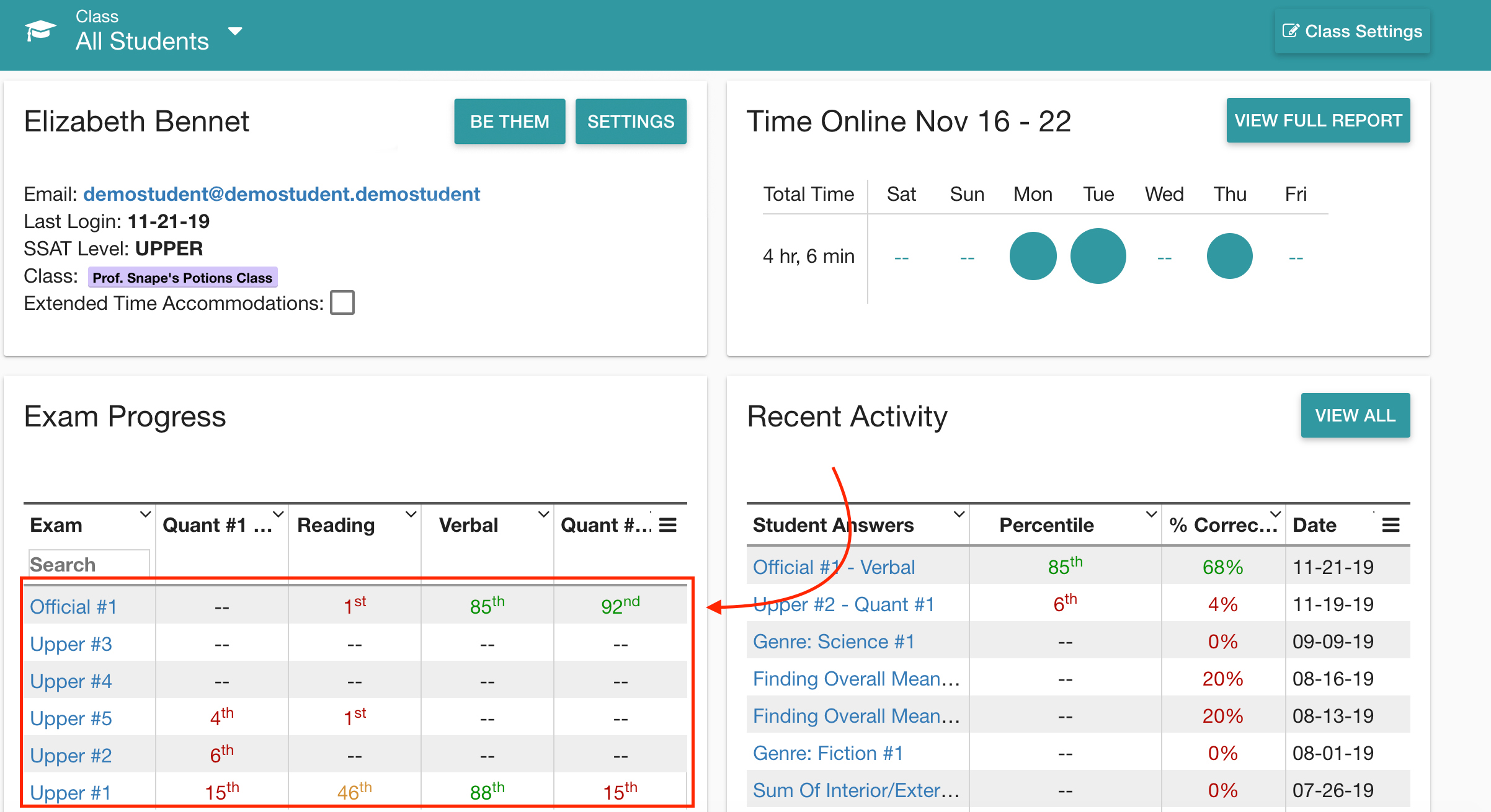
- Click on the title of a specific exam (for example, Upper #1) to see more in-depth results.
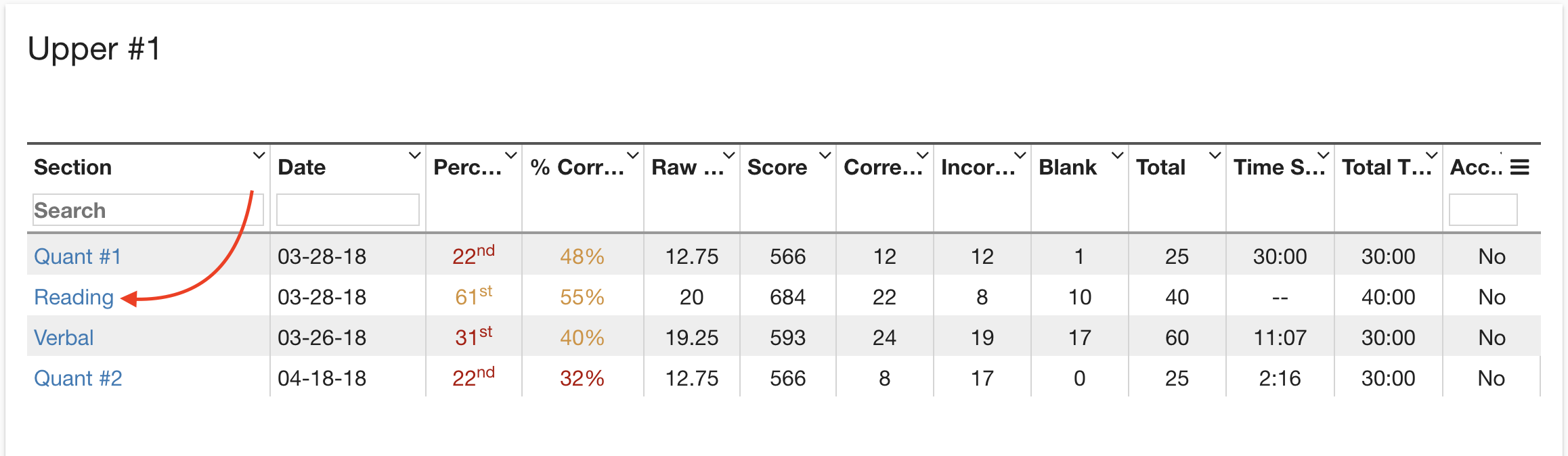
- Here, you can see statistics about each section, including Percentile, Percent Correct, Time Spent, and whether or not the student had Time Accommodations.
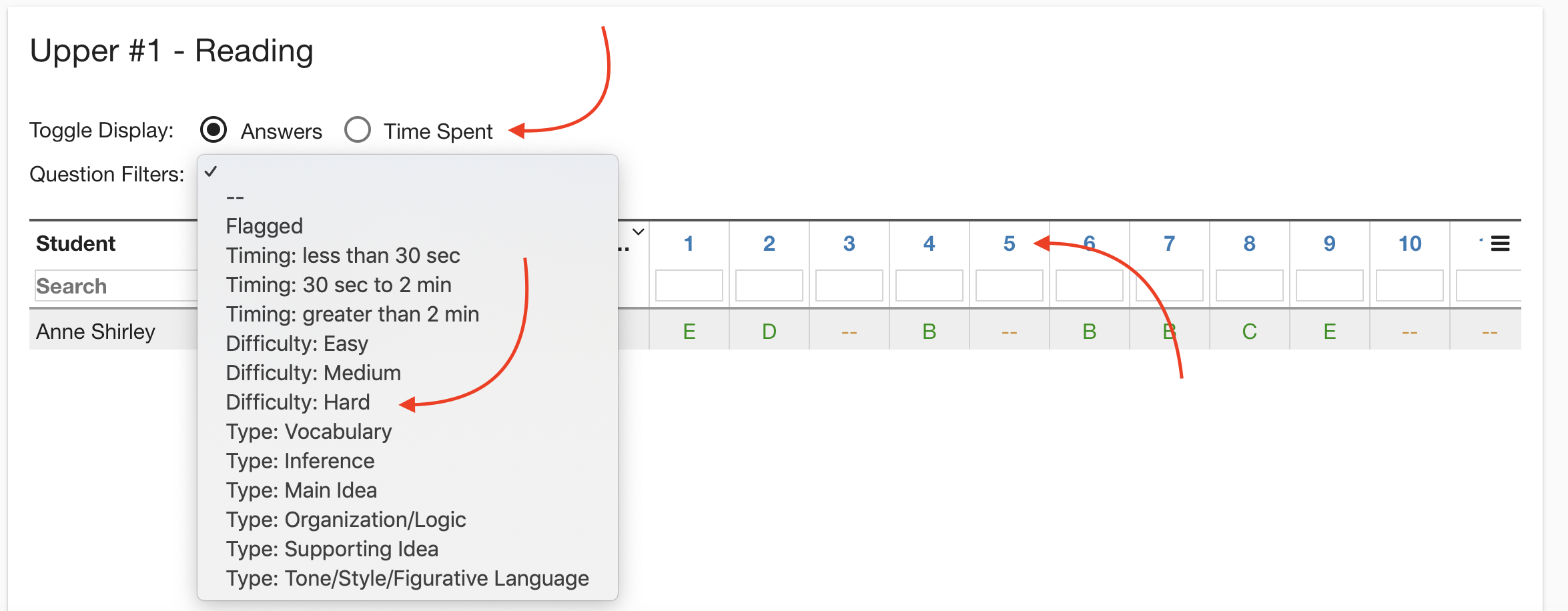
- Click on the title of a specific section (for example, Reading) to see a more granular view of each question, including which answer the student selected and whether their answer was correct (green), incorrect (red), or skipped (yellow).
- Here, you can Toggle between the student's Answer and their Time Spent on each question, use the Question Filters to highlight certain subsets of questions, or click on a specific question number to view that question.
- You can also click on specific questions. You can use the Show Answer and Hide Choices buttons while you practice with students to show/hide the answers and the answer choices.

| See also: Viewing Test Analysis in a Student's Account with the "Be Them" Tool |