
If you are using an ERB account to log in and you have multiple children, you will have separate profiles for each student.
|
Note: The parent profile for your account should not be visible if you have it set up correctly. |
When you log in, you have the option to choose which profile to continue with.
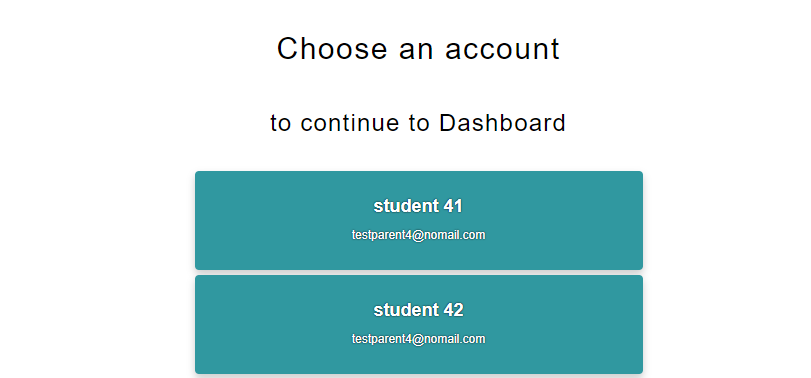
Once you click on the student profile that you want, you will then be redirected to that student's Welcome page. Click on "My ISEE Practice" to access their prep materials.
|
Note: You will not see this option if you only have one student in your ERB account. When you log in, you will go directly to the student's account. |
If you decide to switch profiles from one student to another, you can easily make that switch from the dashboard as well. Click on the account name in the upper right, and there will be a dropdown menu. Choose Switch Account.
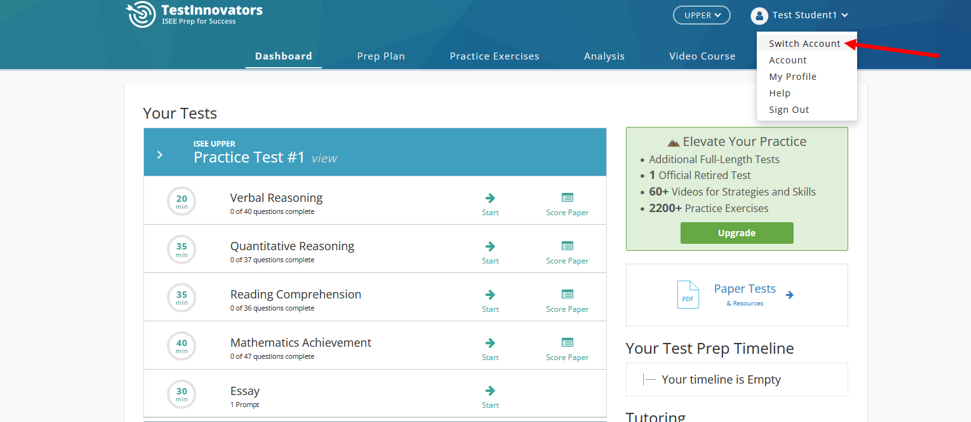
This will bring you back to the page where you can select which student profile you would like to be in.
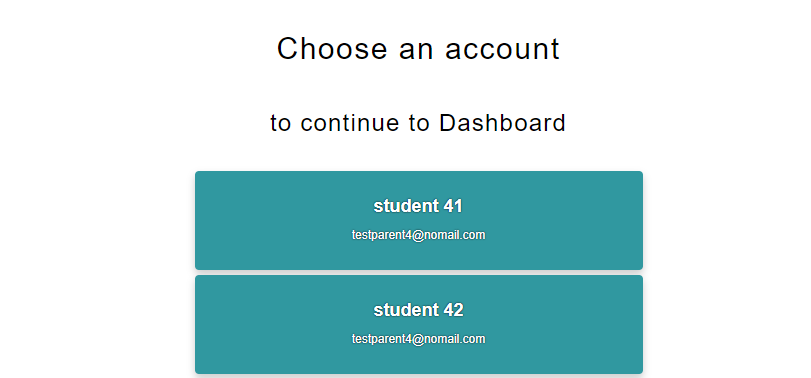
Click on the other student's profile, and you will be redirected to that student's dashboard.
|
Please note that you will need to be in the correct student's profile when you purchase prep materials for them! |